Recently I was tracking down a bug in script for a client. The problem turned out to be a simple typo. I could have easily avoided that by using Set-StrictMode, which I do now, but that's not what this is about. What I realized I wanted was a way to look at all the for "words" in a script. If I could look at them sorted, then typos would jump out. At least in theory.
ManageEngine ADManager Plus - Download Free Trial
Exclusive offer on ADManager Plus for US and UK regions. Claim now!
My plan was to get the content of a text file or script, use a regular expression pattern to identify all the "words" and then get a sorted and unique list. Here's what I came up with.
Function Get-ContentWords {
[cmdletbinding()]
Param (
[Parameter(Position=0,Mandatory=$True,
HelpMessage="Enter the filename for your text file",
ValueFromPipeline=$True)]
[string]$Path
)
Begin {
Set-StrictMode -Version 2.0
Write-Verbose "Starting $($myinvocation.mycommand)"
#define a regular expression pattern to detect "words"

[regex]$word="\b\S+\b"
}
Process {
if ($path.gettype().Name -eq "FileInfo") {
#$Path is a file object
Write-Verbose "Getting content from $($Path.Fullname)"
$content=Get-Content -Path $path.Fullname
}
else {
#$Path is a string
Write-Verbose "Getting content from $path"
$content=get-content -Path $Path
}
#add a little information
$stats=$content | Measure-Object -Word
Write-Verbose "Found approximately $($stats.words) words"
#write sorted unique values
$word.Matches($content) | select Value -unique | sort Value
}
End {
Write-Verbose "Ending $($myinvocation.mycommand)"
}
} #close function
The function uses Get-Content to retrieve the content (what else?!) of the specified file. At the beginning of the function I defined a regular expression object to find "words".
#define a regular expression pattern to detect "words"
[regex]$word="\b\S+\b"
This is an intentionally broad pattern that searches for anything not a space. The \b element indicates a word boundary. Because this is a REGEX object, I can do a bit more than using a basic -match operator. Instead I'll use the Matches() method which will return a collection of match objects. I can pipe these to Select-Object retrieving just the Value property. I also use the -Unique parameter to filter out duplicates. Finally the values are sorted.
$word.Matches($content) | select Value -unique | sort Value
The matches and filtering are NOT case-sensitive, which is fine for me. With the list I can see where I might have used write-host instead of Write-Host and go back to clean up my code. Let me show you how this works. Here's a demo script.
#Requires -version 2.0
$comp = Read-Host "Enter a computer name"
write-host "Querying services on $comp" -fore Cyan
$svc = get-service -comp $comp
$msg = "I found {0} services on $comp" -f $svc.count
Write-Host "Results" -fore Green
Write-Host $mgs -fore Green
The script has some case inconsistencies as well as a typo. I've dot sourced the function in my PowerShell session. Here's what I end up with.
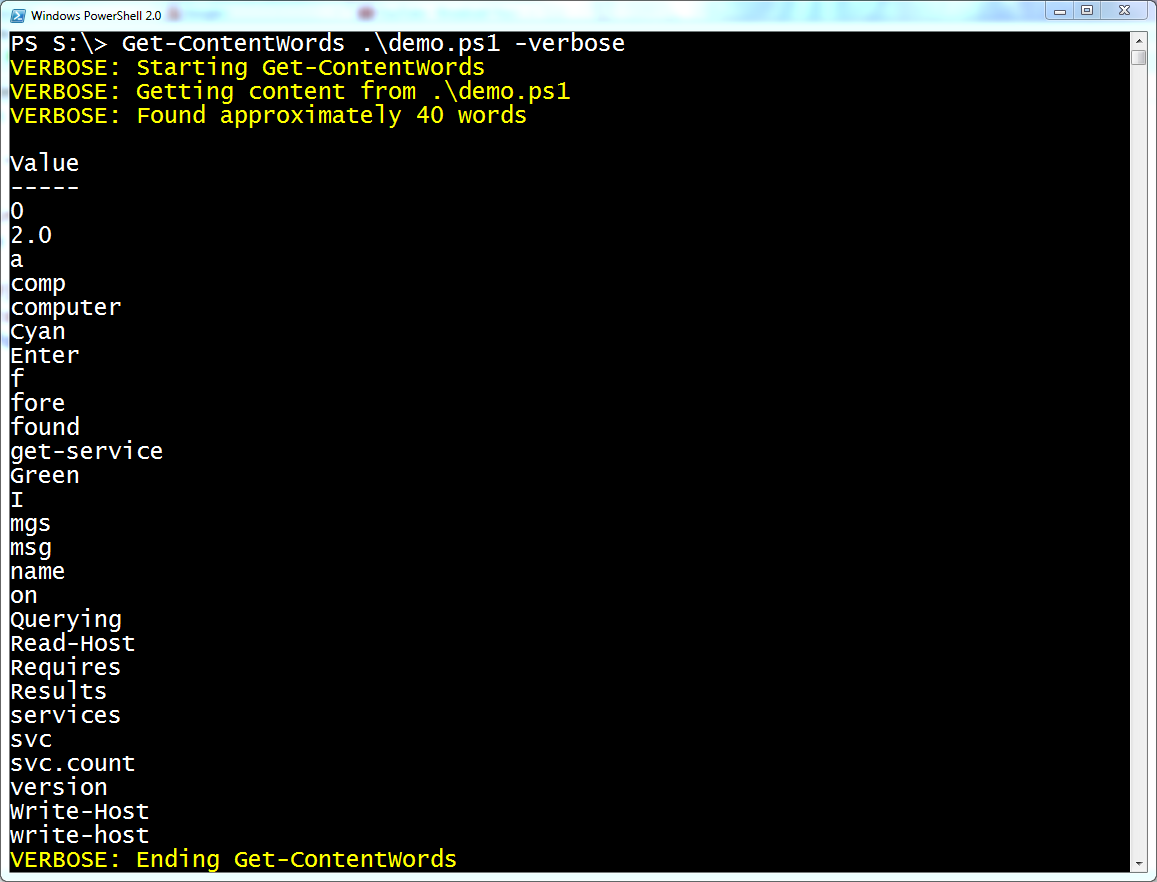
For best results, you need to make sure there are spaces around commands that use the = sign. But now I can scan through the list and pick out potential problems. Sure, Set-StrictMode would help with variable typos but if I had errors in say comment based help, that wouldn't help. Maybe you'll find this useful in your scripting work, maybe not. But I hope you learned a few things about working with REGEX objects and unique properties.
Download Get-ContentWords and enjoy.