Today's Friday Fun is a continuation of my exploration of ways to use Start-Job. A few weeks ago I wrote about using Start-Job to create "scheduled" tasks. I realized I could take this further and turn this into a sort of alarm clock. The goal is to execute at command at a given time, but I wanted to make it easy to specify the time. What I have so far is a function called New-Alarm. I have some other ideas and hope to expand this into a module, but for now I thought I'd toss this out to you and get some feedback.
ManageEngine ADManager Plus - Download Free Trial
Exclusive offer on ADManager Plus for US and UK regions. Claim now!
Function New-Alarm {
[cmdletbinding(SupportsShouldProcess=$True,DefaultParameterSetName="Time")]
Param (
[Parameter(Position=0,ValueFromPipelineByPropertyName=$True)]
[ValidateNotNullorEmpty()]
[string]$Command="Notepad",
[Parameter(Position=1,ValueFromPipelineByPropertyName=$True,ParameterSetName="Time")]
[ValidateNotNullorEmpty()]
[Alias("time")]
[datetime]$Alarm=(Get-Date).AddMinutes(5),
[Parameter(ValueFromPipelineByPropertyName=$True,ParameterSetName="Seconds")]
[int]$Seconds,
[Parameter(ValueFromPipelineByPropertyName=$True,ParameterSetName="Minutes")]
[int]$Minutes,
[Parameter(ValueFromPipelineByPropertyName=$True,ParameterSetName="Hours")]
[int]$Hours,
[Parameter(ValueFromPipelineByPropertyName=$True)]
[Alias("init","is")]
[string]$InitializationScript
)
Process {
if ($seconds) {$Alarm=(Get-Date).AddSeconds($seconds)}
if ($minutes) {$Alarm=(Get-Date).AddMinutes($minutes)}
if ($Hours) {$Alarm=(Get-Date).AddHours($hours)}
Write-Verbose ("{0} Creating an alarm for {1} to execute {2}" -f (Get-Date),$Alarm,$Command)
#define a scriptblock that takes parameters. Parameters are validated in the
#function so we don't need to do it here.
$sbText=@"
Param ([string]`$Command,[datetime]`$Alarm,[string]`$Init)
#define a boolean flag
`$Done=`$False
#loop until the time is greater or equal to the alarm time
#sleeping every 10 seconds
do {
if ((get-date) -ge `$Alarm) {
#run the command
`$ActualTime=Get-Date
Invoke-Expression `$Command
#set the flag to True
`$Done=`$True
}
else {
sleep -Seconds 10
}
} while (-Not `$Done)
#write an alarm summary object which can be retrieved with Receive-Job
New-Object -TypeName PSObject -Property @{
ScheduledTime=`$Alarm
ActualTime=`$ActualTime
Command=`$Command
Initialization=`$Init
}
"@
#append metadata to the scriptblock text so they can be parsed out with Get-Alarm
#to discover information for currently running alarm jobs
$meta=@"
#Alarm Command::$Command
#Alarm Time::$Alarm
#Alarm Init::$InitializationScript
#Alarm Created::$(Get-Date)
"@
#add meta data to scriptblock text
$sbText+=$meta
Write-Debug "Scriptblock text:"
Write-Debug $sbText
Write-Debug "Creating the scriptblock"
#create a scriptblock to use with Start-Job
$sb=$ExecutionContext.InvokeCommand.NewScriptBlock($sbText)
Try {
If ($InitializationScript) {
#turn $initializationscript into a script block
$initsb=$ExecutionContext.InvokeCommand.NewScriptBlock($initializationscript)
Write-Verbose ("{0} Using an initialization script: {1}" -f (Get-Date),$InitializationScript)
}
else {
#no initialization command so create an empty scriptblock
$initsb={}
}
#WhatIf
if ($pscmdlet.ShouldProcess("$command at $Alarm")) {
#create a background job
Start-job -ScriptBlock $sb -ArgumentList @($Command,$Alarm,$InitializationScript) -ErrorAction "Stop" -InitializationScript $Initsb
Write-Verbose ("{0} Alarm Created" -f (Get-Date))
}
}
Catch {
$msg="{0} Exception creating the alarm job. {1}" -f (Get-Date),$_.Exception.Message
Write-Warning $msg
}
} #Process
} #end function
The function includes full help.
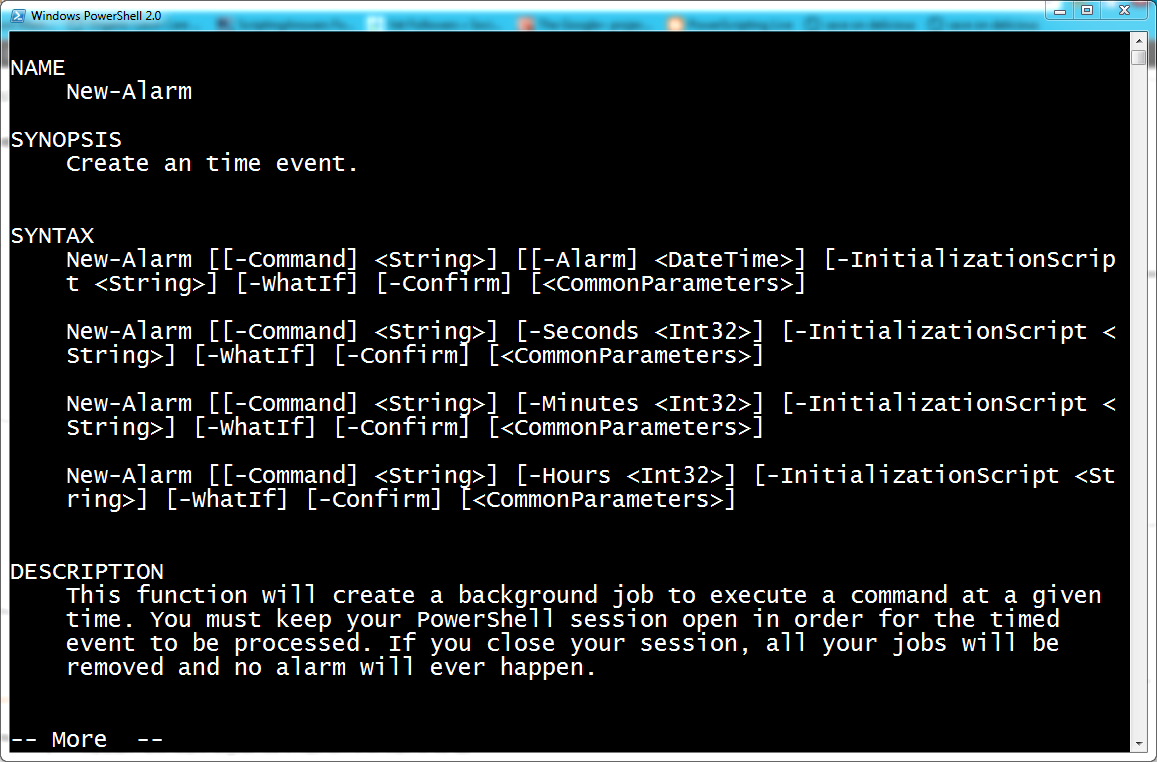
To use the function you specify a command string to execute at a given time. The default's are to run Notepad in 5 minutes. You can either specify an exact time.
PS C:\> new-alarm "get-process | out-file c:\work\noonprocs.txt" -alarm "12:00PM"
Or X number of seconds, minutes or hours.
PS C:\> $s='$f=[system.io.path]::GetTempFilename(); "Hey! Are you paying attention??" > $f;start-process notepad $f -wait;del $f'

PS C:\> new-alarm $s -minutes 15 -verbose
The first command defines a command string, $s. This creates a temporary file, writes some text to it, displays it with Notepad and then deletes it. The second command creates a new alarm that will invoke the expression in 15 minutes.
For now, the command is passed as text. This is so that I can create an internal scriptblock. I use a Do loop to compare the current time to the alarm time. When the time is right, the command string is executed using Invoke-Expression.
$sbText=@"

    Param ([string]`$Command,[datetime]`$Alarm,[string]`$Init)
#define a boolean flag
`$Done=`$False
#loop until the time is greater or equal to the alarm time
#sleeping every 10 seconds
do {
if ((get-date) -ge `$Alarm) {
#run the command
`$ActualTime=Get-Date
Invoke-Expression `$Command
#set the flag to True
`$Done=`$True
}
else {
sleep -Seconds 10
}
} while (-Not `$Done)
#write an alarm summary object which can be retrieved with Receive-Job
New-Object -TypeName PSObject -Property @{
ScheduledTime=`$Alarm
ActualTime=`$ActualTime
Command=`$Command
Initialization=`$Init
}
"@
I also add some metadata to the script block which gets written as the job's result.
#append metadata to the scriptblock text so they can be parsed out with Get-Alarm

#to discover information for currently running alarm jobs
$meta=@"
#Alarm Command::$Command
#Alarm Time::$Alarm
#Alarm Init::$InitializationScript
#Alarm Created::$(Get-Date)
"@
#add meta data to scriptblock text
$sbText+=$meta
Write-Debug "Scriptblock text:"
Write-Debug $sbText
Write-Debug "Creating the scriptblock"
#create a scriptblock to use with Start-Job
$sb=$ExecutionContext.InvokeCommand.NewScriptBlock($sbText)
Finally, the alarm function allows for an initialization command, like you might use with Start-Job. This permits you to run commands such as importing modules or dot sourcing scripts. I have a function that displays a VB style message box. Here's how I might use it as an alarm job.
PS C:\> new-alarm "get-messagebox 'It is time for that thing' -title 'Alert!'" -init ". c:\scripts\get-messagebox.ps1" -min 5
In 5 minutes the alarm will go off and I'll get this.
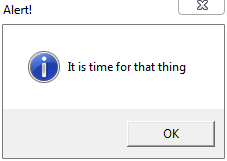
Remember, the function is creating new jobs with the Start-Job cmdlet. Which means I can get job results.
PS C:\> receive-job 7 -keep
Initialization : . c:\scripts\get-messagebox.ps1
ActualTime : 1/20/2012 8:47:07 AM
ScheduledTime : 1/20/2012 8:47:06 AM
Command : get-messagebox 'It is time for that thing' -title 'Alert!'
RunspaceId : d3461b78-11ce-4c84-a8ab-9e3fcd482637
What do you think? As I said, I have a few more ideas and there are certainly a few tweaks I can make even to this code. I've added my Get-MessageBox function in case you want to toy with that. Download AlarmScripts.zip and let me know what you think.