Ok, maybe this isn’t as slick as something from West Coast Customs but maybe you’d like to add a little style to your PowerShell session. I’m talking about the (by now) staid blue console. Perhaps you don’t like blue or the color contrast isn’t too your liking. Here are some things to try if you want to customize your console.
ManageEngine ADManager Plus - Download Free Trial
Exclusive offer on ADManager Plus for US and UK regions. Claim now!
In my PowerShell profile I have three lines that set the title to the PowerShell window, as well as change the background and foreground colors.
#reconfigure the console
[console]::Title="Windows PowerShell 2.0"
[console]::BackgroundColor="black"
[console]::ForegroundColor="green"
I don’t show it, but you need to run CLS to refresh the console.
As you can see all I’m doing is modifying a few settings for the System.Console class. The properties should be self-explanatory. Here’s the end result.
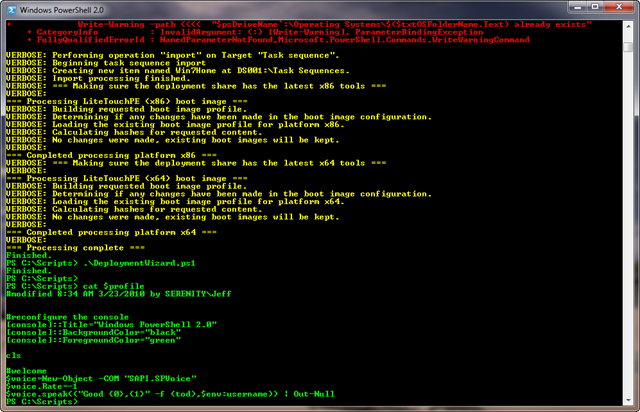
One potential drawback is that any script that is using Write-Host and a green font will be indistinguishable from pipelined output. As long as I stay away from yellow and red, since they are used for warnings, verbose and errors, I should be ok. You can use any color that you would with Write-Host. If you need to reset back to the original console color scheme at any time use this expression:
PS C:\Scripts> [console]::ResetColor() ; cls
You might also like to change the buffer width and height
[console]::BufferHeight=3000
[console]::BufferWidth=120
I like big buffers, what can I say. I made these settings part of the console properties, but I should put them in my profile so that no matter what PowerShell window I open it will be set the same.
How do you like your shell?